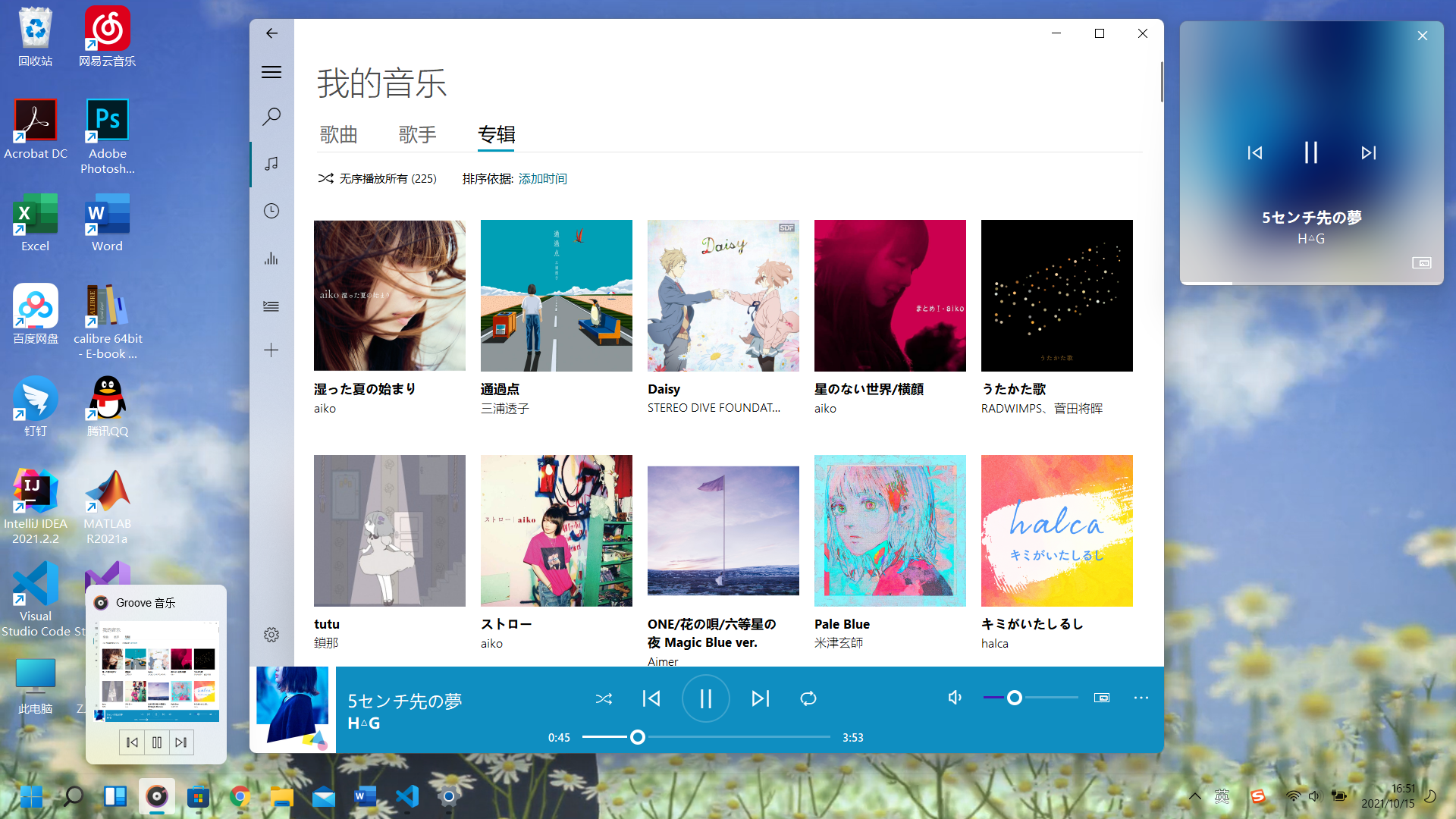
在软件开发中肯定要用到图标,比如下图的 Groove 音乐中就用到了许多图标。一种获取这些图标的方法是把 Groove 音乐截个图,然后熟练地开启 Photoshop,开始抠图。这种方式很逊,效率也很低(虽然我刚开始就是这么干的)。
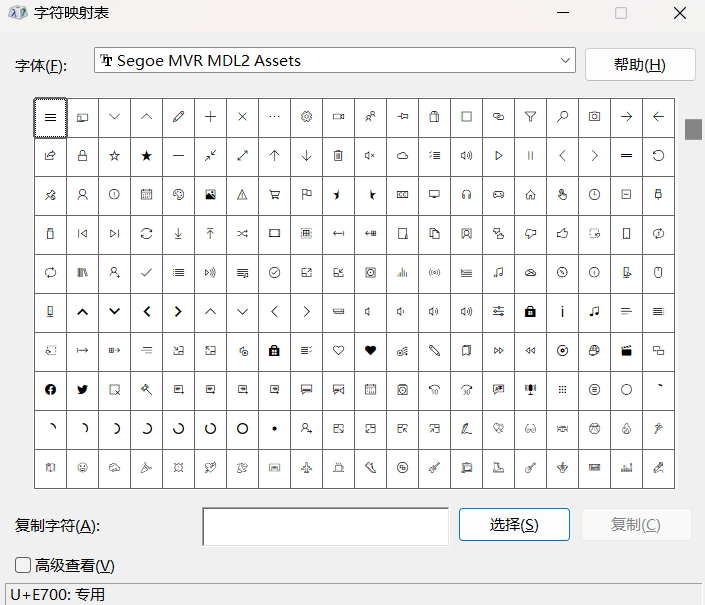
如果打开 C:/Program Files/WindowsApps(需要修改权限才能进入),可以发现几个名字里带 ZuneMusic 的文件夹,其中的某一个文件夹中会有字体文件 SegMVR2.ttf。这是一个图标字体文件,双击安装之后,打开 Windows 自带的字符映射表应用,将字体换为 Segoe MVR MDL2 Assets,可以看到里面的字符其实就是图标。其实可以用 Metro Studio 将这些字体导出为 png、svg 等格式的图片,但是 Metro Studio 导出的字符看起来很细,也无法分别控制上下和左右的内边距,所以这里改用 Javascript 操作 canvas 绘制图标,然后导出为 png。
在 CodePen 上已经有人给出了将 Microsoft 开源的 Fabric UI Icon 渲染为 png 图片的 demo,效果很不错。阅读源代码之后可以发现,他在 getFontIconCharacter() 先创建了一个临时的元素,根据想要的图标的名字设置元素的 className,获取::before 伪元素的 content 中字符的 Unicode,接着在 drawIcon() 中使用 context.fillText() 方法绘制字符,最后 canvas.toDataURL() 就能将 canvas 的内容转换为 base64 格式的图片。
可以看到,对于自定义的的字体,我们只需知道字符的 Unicode,就能实现导出功能。
html 和 coepen 中的几乎完全一样,唯一不同的地方就是将 font-class 换成了 font-unicode,因为我们只有字符的 unicode。
<html><head> <meta charset="UTF-8"> <meta http-equiv="X-UA-Compatible" content="IE=edge"> <meta name="viewport" content="width=device-width, initial-scale=1.0"> <link rel="stylesheet" type="text/css" href="index.css"> <title>iconfont to png</title></head><body> <div dir="ltr"> <h1 >Render Office Fabric UI Icons into Canvas</h1> <p>This is a simple tool to render an icon from the <a href="https://developer.microsoft.com/en-us/fabric#/styles/icons">Office Fabric UI icon font</a> into an HTML <code><canvas></code> with a background color. Right-click and save the image to use it.</p> <div > <div > <h2 >Icon/Canvas Specifications</h2> <form id="form"> <div > <div > <div > <label for="font-unicode">Icon unicode</label> <input type="text" name="fontClass" id="font-unicode" placeholder="e.g. ms-Icon ms-Icon-Warning" value="E768"> </div> <div > <label for="font-size">Font size (px)</label> <input type="number" step="1" min="1" name="fontSize" id="font-size" placeholder="e.g. 60" value="56"> </div> </div> <div > <div > <label for="image-width">Image width (px)</label> <input type="number" step="1" min="0" name="imageWidth" id="image-width" placeholder="e.g. 80" value="92"> </div> <div > <label for="image-height">Image height (px)</label> <input type="number" step="1" min="0" name="imageHeight" id="image-height" placeholder="e.g. 80" value="92"> </div> </div> <div > <div > <label for="left-offset">Left offset</label> <input type="number" step="1" name="leftOffset" id="left-offset" placeholder="e.g. 40" value="46"> </div> <div > <label for="top-offset">Top offset</label> <input type="number" step="1" name="topOffset" id="top-offset" placeholder="e.g. 40" value="46"> </div> </div> <div > <div > <label for="bg-color">Background color</label> <input type="text" name="bgColor" id="bg-color" placeholder="e.g. #777777" value=#777777> </div> <div > <label for="icon-color">Icon color</label> <input type="text" name="iconColor" id="icon-color" placeholder="e.g. #FFFFFF" value=#FFFFFF> </div> </div> <div > <div > <label><input type="checkbox" checked name="shape" id="shape"> Use a circle as the background fill</label> </div> </div> </div> <input type="submit" value="Render Font Icon"> <p>If the icon does not render immediately, wait a few seconds and press the <b>Render</b> button again; the webfont may still be loading.</p> </form> </div> <div > <h2 >Result</h2> <div > <canvas id="canvas" width="92" height="92"></canvas> </div> <p><a id="download-link" target="_blank"><i ></i> Download the image</a></p> <label for="dataURL">Data URL</label> <input id="dataURL" type="text"> </div> </div> </div></body><script src="index.js"></script></html>与 codepen 中的代码相比,这里只是多了一个 @font-face 声明要使用的字体。图标的下载地址在 蓝奏云,密码为 abcr。
@import url(https://static2.sharepointonline.com/files/fabric/office-ui-fabric-core/11.0.0/css/fabric.min.css);@font-face { font-family: 'Segoe MVR MDL2 Assets'; src: url('SegoeMVRMDL2Assets.ttf') format('truetype'); font-weight: normal; font-style: normal;}html { box-sizing: border-box;}*,*:before,*:after { box-sizing: inherit;}body { font-family: "Segoe UI", -apple-system, BlinkMacSystemFont, Roboto, "Helvetica Neue", sans-serif; background-color: #0078d4; color: white;}.ms-Grid { margin: 0 auto; padding: 0 16px; max-width: 1280px;}.ms-Grid-row { margin-left: -16px; margin-right: -16px;}.ms-Grid-col { padding: 0 16px;}label { display: block; margin-bottom: 0.5em;}input { border: none; display: block; margin-bottom: 2em; padding: 5px; width: 100%; font-size: 16px;}input[type="checkbox"] { display: inline-block; padding: 0; width: auto;}input[type="button"],input[type="submit"],.ms-button { cursor: pointer; display: inline-block; padding: 0.75em 2em; text-decoration: none; width: auto;}.ms-button .ms-Icon { transform: translateY(2px);}.canvas-container { background-color: white; display: inline-block; margin-bottom: 1em; padding: 10px; width: auto;}#canvas { color: black; font-family: FabricMDL2Icons;}这里我们主要修改了 getFontIconCharacter() 函数,直接根据输入框的内容返回字符的 Unicode。
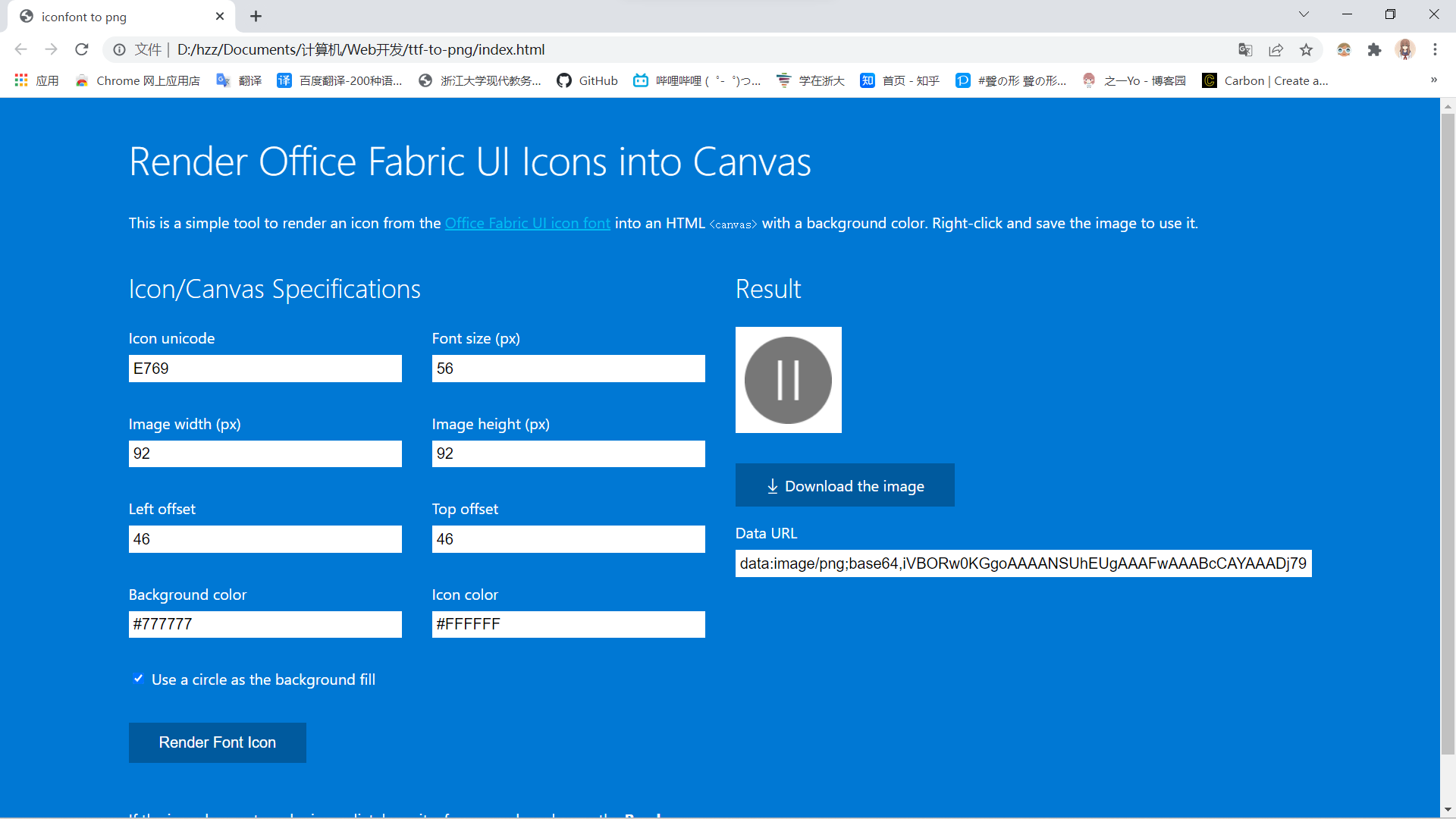
const form = document.getElementById("form");const canvas = document.getElementById("canvas");const context = canvas.getContext("2d");const download = document.getElementById("download-link");const dataURL = document.getElementById("dataURL");const fontFamily = "Segoe MVR MDL2 Assets";function getFontIconCharacter(unicode) { return String.fromCharCode(parseInt(unicode, 16));}function drawCircle() { var centerX = canvas.width / 2; var centerY = canvas.height / 2; var radius = canvas.width / 2; context.beginPath(); context.arc(centerX, centerY, radius, 0, 2 * Math.PI, false); context.fillStyle = document.getElementById("bg-color").value || "#777777"; context.fill();}function drawRect() { context.fillStyle = document.getElementById("bg-color").value || "#777777"; context.fillRect(0, 0, canvas.width, canvas.height);}function drawIcon() { canvas.width = parseInt(document.getElementById("image-width").value, 10) || 92; canvas.height = parseInt(document.getElementById("image-height").value, 10) || 92; context.clearRect(0, 0, canvas.width, canvas.height); if (document.getElementById("shape").checked) { drawCircle(); } else { drawRect(); } context.fillStyle = document.getElementById("icon-color").value || "#FFFFFF"; let fontUnicode = document.getElementById("font-unicode").value, fontSize = document.getElementById("font-size").value || 280, topOffset = document.getElementById("top-offset").value || 210, leftOffset = document.getElementById("left-offset").value || 210; context.font = `${fontSize}px ${fontFamily}`; context.textAlign = "center"; context.textBaseline = "middle"; context.fillText(getFontIconCharacter(fontUnicode), parseInt(leftOffset, 10), parseInt(topOffset, 10)); dataURL.value = canvas.toDataURL();}window.addEventListener('load', function () { drawIcon();});document.addEventListener('DOMContentLoaded', function () { context.font = "10px " + fontFamily; context.fillText("...", 0, 0);});form.addEventListener("submit", function (event) { event.preventDefault(); drawIcon();});download.addEventListener("click", function (event) { if (typeof this.download !== "undefined") { this.href = canvas.toDataURL(); this.download = `${document.getElementById("font-unicode").value}.png`; } else { event.preventDefault(); alert("Your browser does not support downloading a canvas image. Please right-click on the image to save it."); }});dataURL.addEventListener("focus", function (event) { dataURL.select();});打开 html 之后如下图所示,只需修改 Icon unicode,再点击 Render Font Icon 按钮,就能在右侧的画布中看到图标,点击 Download the image 按钮就能下载图标了。