摘要:echarts 是一个很强大的图表库,除了我们常见的图表功能,还可以自定义图形,这个功能让我们可以很简单地在画布上绘制一些非常规的图形,基于此,我们来玩一些花哨的:做一个 Flappy Bird 小游戏。
本文分享自华为云社区《没想到吧!这个可可爱爱的游戏居然是用 ECharts 实现的!》,作者: DevUI 。
echarts 是一个很强大的图表库,除了我们常见的图表功能,echarts 有一个自定义图形的功能,这个功能可以让我们很简单地在画布上绘制一些非常规的图形,基于此,我们来玩一些花哨的。
Flappy Bird 小游戏体验地址(看看你能玩几分):https://foolmadao.github.io/echart-flappy-bird/echarts-bird.html
下面我们来一步步实现他。
首先实例化一个 echart 容器,再从网上找一个像素小鸟的图片,将散点图的散点形状,用自定义图片的方式改为小鸟。
const myChart = echarts.init(document.getElementById('main'));option = { series: [ { name: 'bird', type: 'scatter', symbolSize: 50, symbol: 'image://bird.png', data: [ [50, 80] ], animation: false }, ]};myChart.setOption(option);
要让小鸟动起来,就需要给一个向右的速度和向下的加速度,并在每一帧的场景中刷新小鸟的位置。而小鸟向上飞的动作,则可以靠角度的旋转来实现,向上飞的触发条件设置为空格事件。
option = { series: [ { xAxis: { show: false, type: 'value', min: 0, max: 200, }, yAxis: { show: false, min: 0, max: 100 }, name: 'bird', type: 'scatter', symbolSize: 50, symbol: 'image://bird.png', data: [ [50, 80] ], animation: false }, ]};// 设置速度和加速度let a = 0.05;let vh = 0;let vw = 0.5timer = setInterval(() => { // 小鸟位置和仰角调整 vh = vh - a; option.series[0].data[0][1] += vh; option.series[0].data[0][0] += vw; option.series[0].symbolRotate = option.series[0].symbolRotate ? option.series[0].symbolRotate - 5 : 0; // 坐标系范围调整 option.xAxis.min += vw; option.xAxis.max += vw; myChart.setOption(option);}, 25);
效果如下
echarts 自定义系列,渲染逻辑由开发者通过 renderItem 函数实现。该函数接收两个参数 params 和 api,params 包含了当前数据信息和坐标系的信息,api 是一些开发者可调用的方法集合,常用的方法有:
灵活使用上述 api,就可以将用户传入的 Data 数据转换为自己想要的坐标系上的像素位置。
renderItem 函数返回一个 echarts 中的 graphic 类,可以多种图形组合成你需要的形状,graphic 类型。对于我们游戏中的障碍物只需要使用矩形即可绘制出来,我们使用到下面两个类。
// 数据项定义为[x坐标,下方水管上侧y坐标, 上方水管下侧y坐标]data: [ [150, 50, 80], ...]renderItem: function (params, api) { // 获取每个水管主体矩形的起始坐标点 let start1 = api.coord([api.value(0) - 10, api.value(1)]); let start2 = api.coord([api.value(0) - 10, 100]); // 获取两个水管头矩形的起始坐标点 let startHead1 = api.coord([api.value(0) - 12, api.value(1)]); let startHead2 = api.coord([api.value(0) - 12, api.value(2) + 8]) // 水管头矩形的宽高 let headSize = api.size([24, 8]) // 水管头矩形的宽高 let rect = api.size([20, api.value(1)]); let rect2 = api.size([20, 100 - api.value(2)]); // 坐标系配置 const common = { x: params.coordSys.x, y: params.coordSys.y, width: params.coordSys.width, height: params.coordSys.height } // 水管形状 const rectShape = echarts.graphic.clipRectByRect( { x: start1[0], y: start1[1], width: rect[0], height: rect[1] },common ); const rectShape2 = echarts.graphic.clipRectByRect( { x: start2[0], y: start2[1], width: rect2[0], height: rect2[1] }, common ) // 水管头形状 const rectHeadShape = echarts.graphic.clipRectByRect( { x: startHead1[0], y: startHead1[1], width: headSize[0], height: headSize[1] },common ); const rectHeadShape2 = echarts.graphic.clipRectByRect( { x: startHead2[0], y: startHead2[1], width: headSize[0], height: headSize[1] },common ); // 返回一个group类,由四个矩形组成 return { type: 'group', children: [{ type: 'rect', shape: rectShape, style: { ...api.style(), lineWidth: 1, stroke: '#000' } }, { type: 'rect', shape: rectShape2, style: { ...api.style(), lineWidth: 1, stroke: '#000' } }, { type: 'rect', shape: rectHeadShape, style: { ...api.style(), lineWidth: 1, stroke: '#000' } }, { type: 'rect', shape: rectHeadShape2, style: { ...api.style(), lineWidth: 1, stroke: '#000' } }] }; },
颜色定义,我们为了让水管具有光泽使用了 echarts 的线性渐变色对象。
itemStyle: { // 渐变色对象 color: { type: 'linear', x: 0, y: 0, x2: 1, y2: 0, colorStops: [{ offset: 0, color: '#ddf38c' // 0% 处的颜色 }, { offset: 1, color: '#587d2a' // 100% 处的颜色 }], global: false // 缺省为 false }, borderWidth: 3},
另外,用一个 for 循环一次性随机出多个柱子的数据
function initObstacleData() { // 添加minHeight防止空隙太小 let minHeight = 20; let start = 150; obstacleData = []; for (let index = 0; index < 50; index++) { const height = Math.random() * 30 + minHeight; const obstacleStart = Math.random() * (90 - minHeight); obstacleData.push( [ start + 50 * index, obstacleStart, obstacleStart + height > 100 ? 100 : obstacleStart + height ] ) } }
再将背景用游戏图片填充,我们就将整个游戏场景,绘制完成:
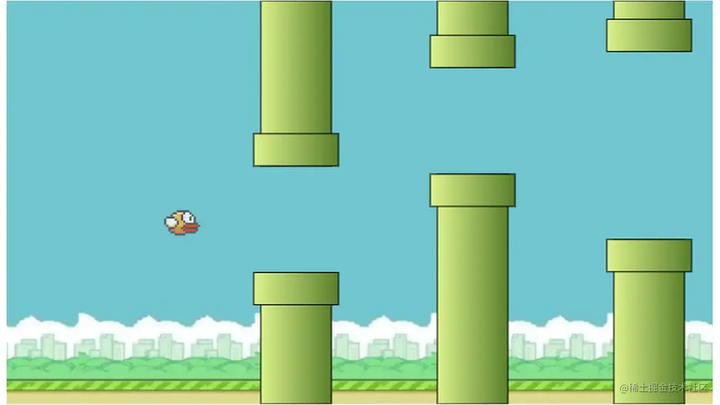
由于飞行轨迹和障碍物数据都很简单,所以我们可以将碰撞逻辑简化为小鸟图片的正方形中,我们判断右上和右下角是否进入了自定义图形的范围内。
对于特定坐标下的碰撞范围,因为柱子固定每格 50 坐标值一个,宽度也是固定的,所以,可碰撞的横坐标范围就可以简化为 (x / 50 % 1) < 0.6
在特定范围内,依据 Math.floor (x / 50) 获取到对应的数据,即可判断出两个边角坐标是否和柱子区域有重叠了。在动画帧中判断,如果重叠了,就停止动画播放,游戏结束。
// centerCoord为散点坐标点function judgeCollision(centerCoord) { if (centerCoord[1] < 0 || centerCoord[1] > 100) { return false; } let coordList = [ [centerCoord[0] + 15, centerCoord[1] + 1], [centerCoord[0] + 15, centerCoord[1] - 1], ] for (let i = 0; i < 2; i++) { const coord = coordList[i]; const index = coord[0] / 50; if (index % 1 < 0.6 && obstacleData[Math.floor(index) - 3]) { if (obstacleData[Math.floor(index) - 3][1] > coord[1] || obstacleData[Math.floor(index) - 3][2] < coord[1]) { return false; } } } return false}function initAnimation() { // 动画设置 timer = setInterval(() => { // 小鸟速度和仰角调整 vh = vh - a; option.series[0].data[0][1] += vh; option.series[0].data[0][0] += vw; option.series[0].symbolRotate = option.series[0].symbolRotate ? option.series[0].symbolRotate - 5 : 0; // 坐标系范围调整 option.xAxis.min += vw; option.xAxis.max += vw; // 碰撞判断 const result = judgeCollision(option.series[0].data[0]) if(result) { // 产生碰撞后结束动画 endAnimation(); } myChart.setOption(option); }, 25);}
echarts 提供了强大的图形绘制自定义能力,要使用好这种能力,一定要理解好数据坐标点和像素坐标点之间的转换逻辑,这是将数据具象到画布上的重要一步。
运用好这个功能,再也不怕产品提出奇奇怪怪的图表需求。
源码地址:https://github.com/foolmadao/echart-flappy-bird
点击关注,第一时间了解华为云新鲜技术~