感谢各位大佬和粉丝的厚爱和关心( 催更),我会再接再厉的,其实这也是督促自己的一种方式,非常感谢。
刚写了一篇万字长文,自己也休养生息(低调发育)了一段时间,接下来来几个小案例。
WPF的拖曳效果,基本配置一下,就可以了,但是自绘的话,就得自己控制,按键点击,按键移动和按键松开的事件,与其配合达到目的。
这个效果实现了,其实也变相的实现了WPF里的拖动效果,这个效果用着还是很方便的。
但是代码,确十分的简单。
新建一个WPF项目,然后,Nuget包即可
要添加Nuget包
Install-Package SkiaSharp.Views.WPF -Version 2.88.0其中核心逻辑是这部分,会以我设置的60FPS来刷新当前的画板。
skContainer.PaintSurface += SkContainer_PaintSurface;_ = Task.Run(() =>{ while (true) { try { Dispatcher.Invoke(() => { skContainer.InvalidateVisual(); }); _ = SpinWait.SpinUntil(() => false, 1000 / 60);//每秒60帧 } catch { break; } }});先对SkiaSharp对象,增加相关事件
skContainer.MouseDown += SkContainer_MouseDown; skContainer.MouseUp += SkContainer_MouseUp; skContainer.MouseMove += SkContainer_MouseMove; 然后增加相关事件处理代码,我这边都统一处理了.
private void SkContainer_MouseDown(object sender, MouseButtonEventArgs e){ var cur = e.GetPosition(sender as IInputElement); drawClock.MouseDown(new SKPoint((float)cur.X, (float)cur.Y), true);}private void SkContainer_MouseUp(object sender, MouseEventArgs e){ var cur = e.GetPosition(sender as IInputElement); drawClock.MouseDown(new SKPoint((float)cur.X, (float)cur.Y), false);}private void SkContainer_MouseMove(object sender, MouseEventArgs e){ var cur = e.GetPosition(sender as IInputElement); drawClock.MouseMove(new SKPoint((float)cur.X, (float)cur.Y));}/// <summary>/// 拖曳 /// </summary>public class Drag{ public SKPoint centerPoint; public int Radius = 0; private bool Pressed = false; private bool CirclePressend = false; private SKPoint sKPoint = SKPoint.Empty; private SKPoint CirclePoint = SKPoint.Empty; private SKCanvas canvas; private float dx = 0; private float dy = 0; /// <summary> /// 渲染 /// </summary> public void Render(SKCanvas canvas, SKTypeface Font, int Width, int Height) { this.canvas = canvas; centerPoint = new SKPoint(Width / 2, Height / 2); this.Radius = 40; canvas.Clear(SKColors.White); if (CirclePoint.IsEmpty) { CirclePoint = new SKPoint(centerPoint.X, centerPoint.Y); } if (CirclePressend) { CirclePoint = new SKPoint(sKPoint.X - dx, sKPoint.Y - dy); DrawCircle(this.canvas, CirclePoint); } else { DrawCircle(this.canvas, CirclePoint); } using var paint = new SKPaint { Color = SKColors.Black, IsAntialias = true, Typeface = Font, TextSize = 24 }; var msg = $"X:{ sKPoint.X} Y:{sKPoint.Y} Pressed:{Pressed} CirclePressend:{CirclePressend}"; canvas.DrawText(msg, 0, 30, paint); } public void MouseMove(SKPoint sKPoint) { this.sKPoint = sKPoint; if (CirclePressend)//按下,就开始拖动 { CirclePoint = sKPoint; } } public void MouseDown(SKPoint sKPoint, bool Pressed) { this.sKPoint = sKPoint; this.Pressed = Pressed; if (this.Pressed) { this.CirclePressend = CheckPoint(sKPoint, CirclePoint); if (this.CirclePressend) { dx = sKPoint.X - CirclePoint.X; dy = sKPoint.Y - CirclePoint.Y; } } else { this.CirclePressend = false; } } public bool CheckPoint(SKPoint sKPoint, SKPoint CirclePoint) { var d = Math.Sqrt(Math.Pow(sKPoint.X - CirclePoint.X, 2) + Math.Pow(sKPoint.Y - CirclePoint.Y, 2)); return this.Radius >= d; } /// <summary> /// 画一个圆 /// </summary> public void DrawCircle(SKCanvas canvas, SKPoint sKPoint) { using var paint = new SKPaint { Color = SKColors.Blue, Style = SKPaintStyle.Fill, IsAntialias = true, StrokeWidth = 2 }; canvas.DrawCircle(sKPoint.X, sKPoint.Y, Radius, paint); }}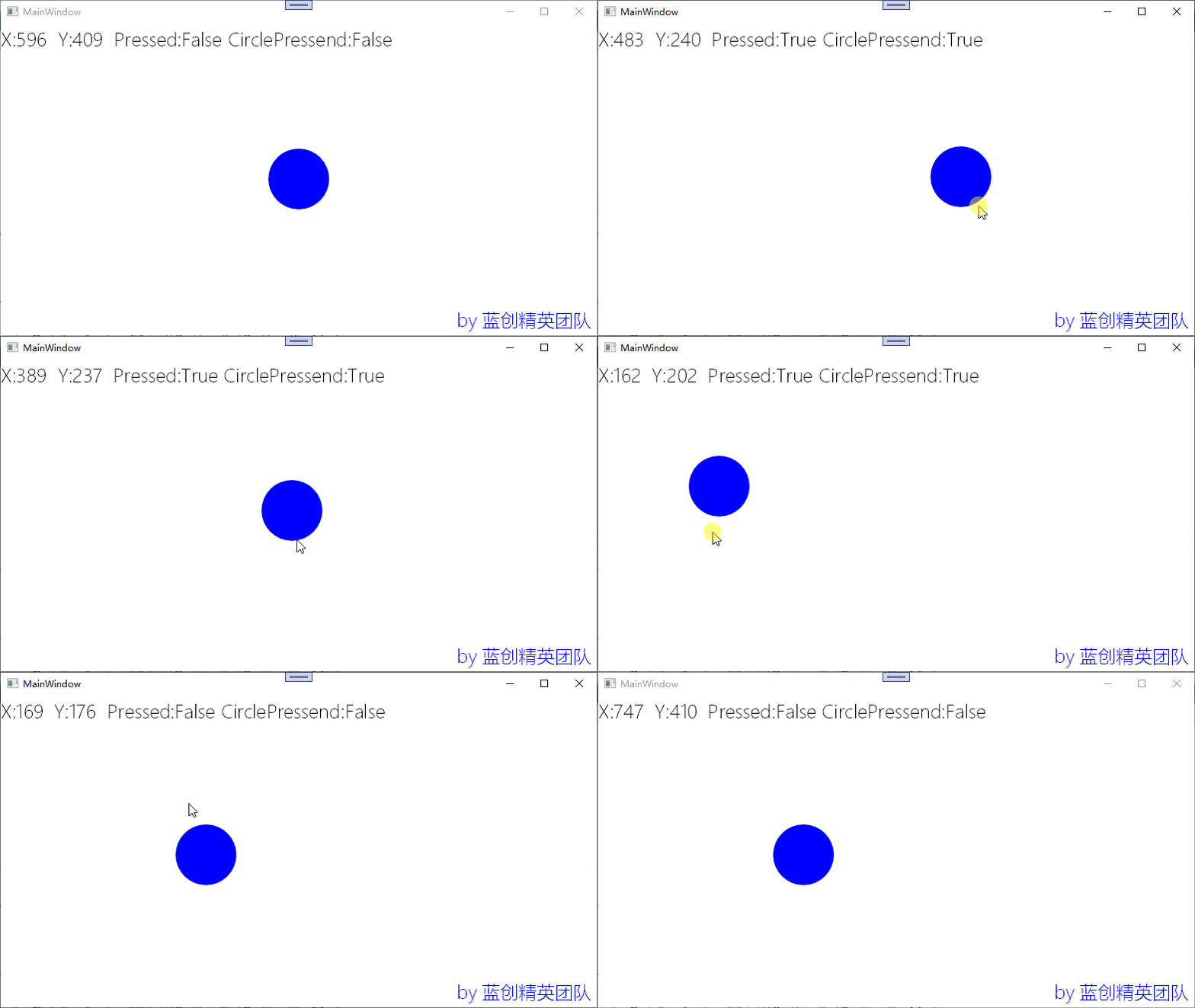
我可以点的球的边边哦,这也是一个小技巧,点到球哪里,停止的时候,鼠标还在那个位置,是不是有点像拖动窗体的感觉了。
以前对拖曳总是很好奇,一直想是如何实现的,现在自己也自己从头到尾的实现了,那么,它就是已知的,这就是可以写出来的进步,每天都应该有一点这样的进步。
https://github.com/kesshei/WPFSkiaDragDemo.git
https://gitee.com/kesshei/WPFSkiaDragDemo.git
一键三连呦!,感谢大佬的支持,您的支持就是我的动力!
蓝创精英团队(公众号同名,CSDN同名,CNBlogs同名)